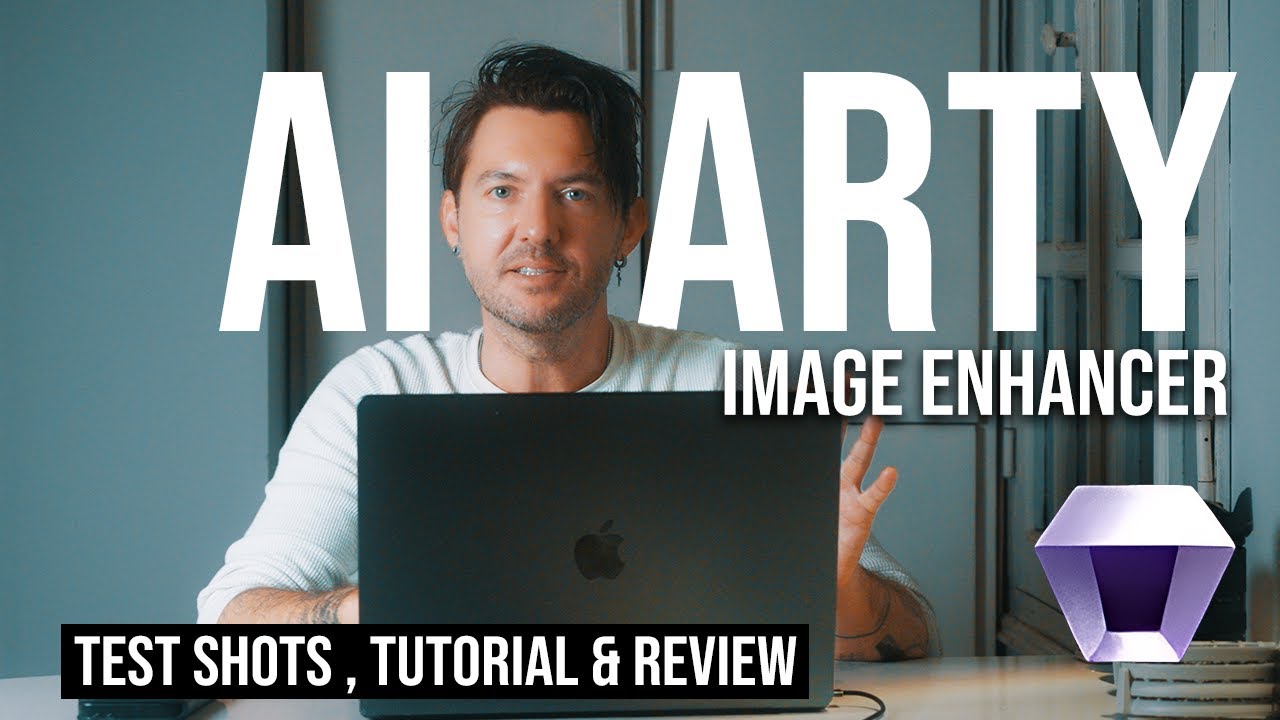
Watch the walkthrough
My testing setup
- Machine: Ryzen 7 5800H, RTX 3060 laptop GPU, 32 GB RAM
- Files: a 640x480 Facebook memory, a 12MP landscape, and a 6MP scanned artwork
- Target outputs: 4K and 8K TIFFs for print, plus quick 2x JPEGs for social
- Time taken: 4K portrait upscale in 54 seconds on GPU, 2 minutes on CPU
- Energy cost: ran on battery first (drained fast), then plugged in to finish the batch
I keep the “FacePro” model for portraits, “UltraSharp” for landscapes, and disable noise reduction unless the source is ISO 3200 or worse.
What I cover
- AI image upscaling up to 8K
- Noise reduction, deblurring, and face restoration
- Texture/detail enhancement plus color correction tools
- Batch vs single exports, CPU vs GPU acceleration
- Pricing compared to Topaz and why the lifetime license matters
Why it matters
AIARTY's Image Enhancer is built for rescuing old photos, prepping artwork for print, and polishing low-resolution social shots without a subscription. In the video I show real examples,from Facebook memories to landscape frames,to see where the models shine and where they struggle.
If you need high-quality enlargements for gifts, client deliveries, or documentary stills, this walkthrough will give you a realistic look at the results.
Quick links
Real-world results
- Portrait (640x480 → 4K): Eyes stay sharp, skin looks natural after dialing noise reduction to 10%. Hair strands still get a bit waxy,Topaz Photo AI kept them crisper.
- Landscape (12MP → 8K): Clouds and leaves avoid the watercolor effect if you keep “Clarity” under 30%. Over that, you’ll see halos around tree lines.
- Scanned artwork (6MP → 8K): The “ArtGuard” model keeps brush texture better than Topaz. My print on matte A3 looked like the original sketch.
Batch exports default to JPEG 90%. I switch to TIFF when I need to color grade later, otherwise JPEG is fine for social delivery.
Pricing and best use cases
The lifetime license was $79 on sale (normally $159) and activates on three machines. No recurring fee is the big win over Topaz. The only hidden cost is GPU time,on my RTX 3060, an hour-long batch roughly equals 12–15% battery on the Asus Zephyrus.
Who it fits:
- Photographers restoring family archives or printing small gallery runs
- Video shooters pulling frame grabs for thumbnails without jumping into Photoshop
- Artists upscaling sketches for Redbubble or Etsy prints without subscription overhead
Who should wait: if you already own Topaz Photo AI and need the very best hair detail on portraits, Topaz still wins,but AIARTY is faster on mid-range GPUs and simpler to use.
Things people don't tell you
- Turn off “Auto Denoise” for clean daylight shots or you’ll get a plastic look.
- Face restoration is aggressive,keep strength at 40–50% if you’re handling older family photos.
- GPU acceleration only kicks in after you toggle it in settings; it defaulted to CPU on my first install.
- Exports inherit your input color profile. Convert to sRGB first if you’re sending to print-on-demand sites.
FAQ
Can it handle noisy ISO 6400 concert shots? Yes, but keep noise reduction below 40% or you’ll flatten the stage lights. I sometimes run a light pass in Lightroom first.
Does it replace Photoshop? No. It’s a finishing tool,great for enlarging and cleaning, not for compositing.
How big are the files? A 4K TIFF lands around 80–120 MB. Make sure you have disk space before running a 20-photo batch.
Will it run on integrated graphics? It works, but my Intel iGPU took 5–6 minutes per 4K upscale. A mid-tier GPU saves hours.